Found text
Find a word, number, address or sentence directly inside screenshots.
Your everyday screenshot app
CaptainShot continuously turns screenshots into a private, organized and searchable library on iPhone, iPad and Mac.
The interface, analysis, search, and main features are available in nine languages.
Available on iPhone, iPad, and Mac.
Automatic collections
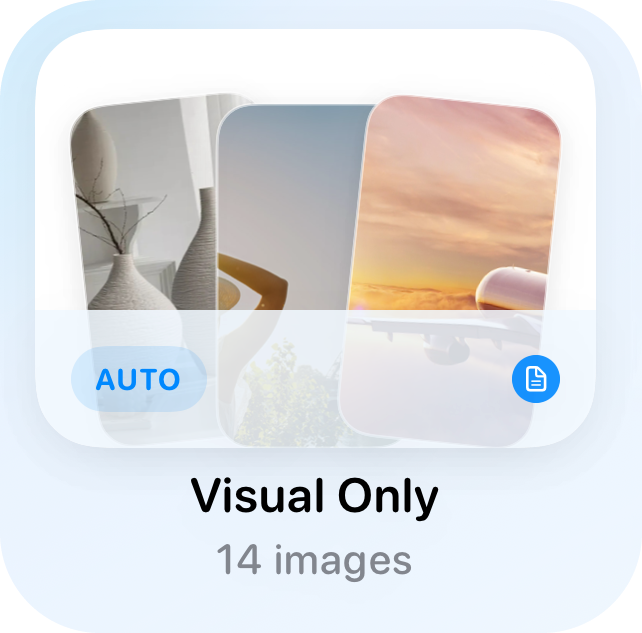
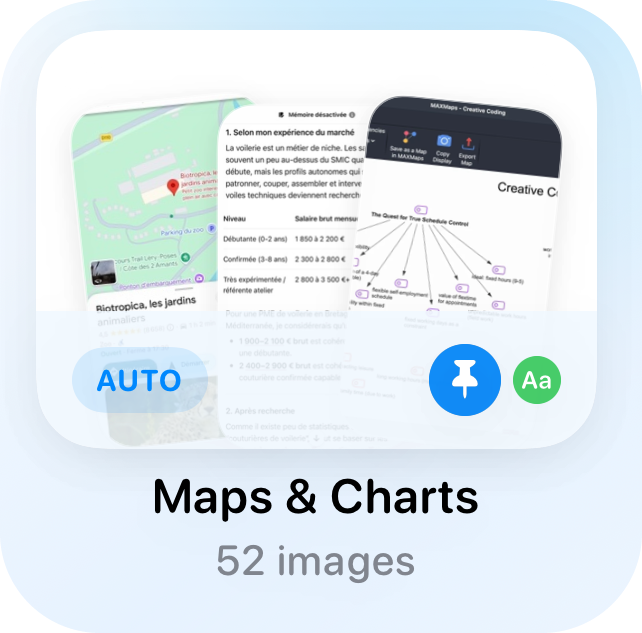
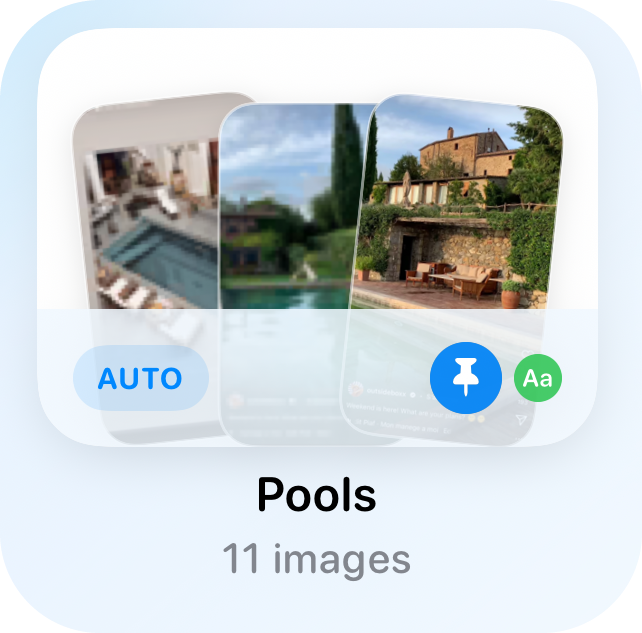
CaptainShot automatically organizes screenshots and added images into practical themes such as documents, travel, shopping, recipes or projects. You can also create your own collections: their title and initial images guide the classification of relevant new images.
Name a collection and add a few initial images. Incremental analysis then uses this context to classify relevant new images into it.
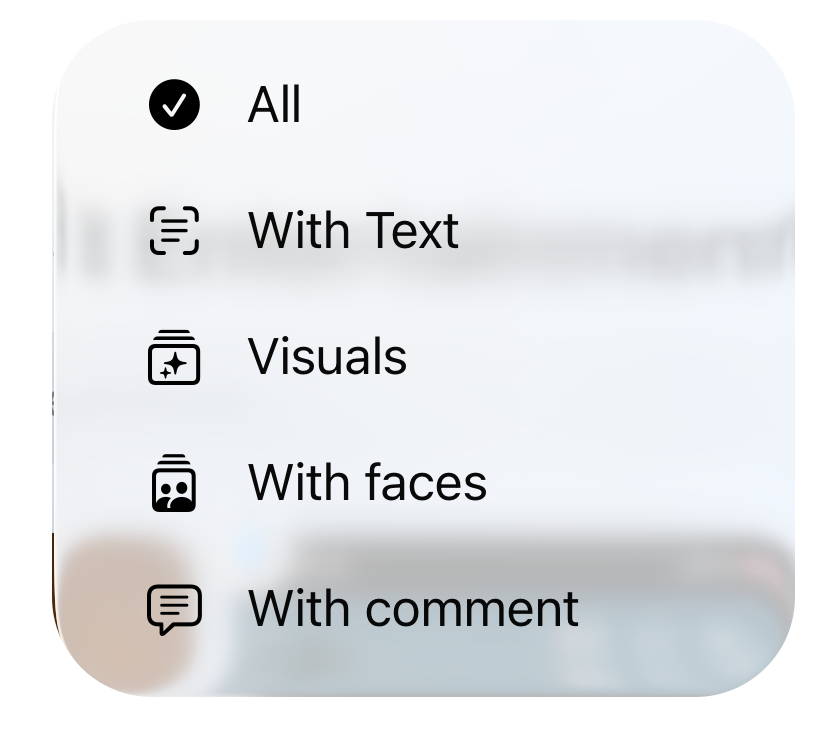
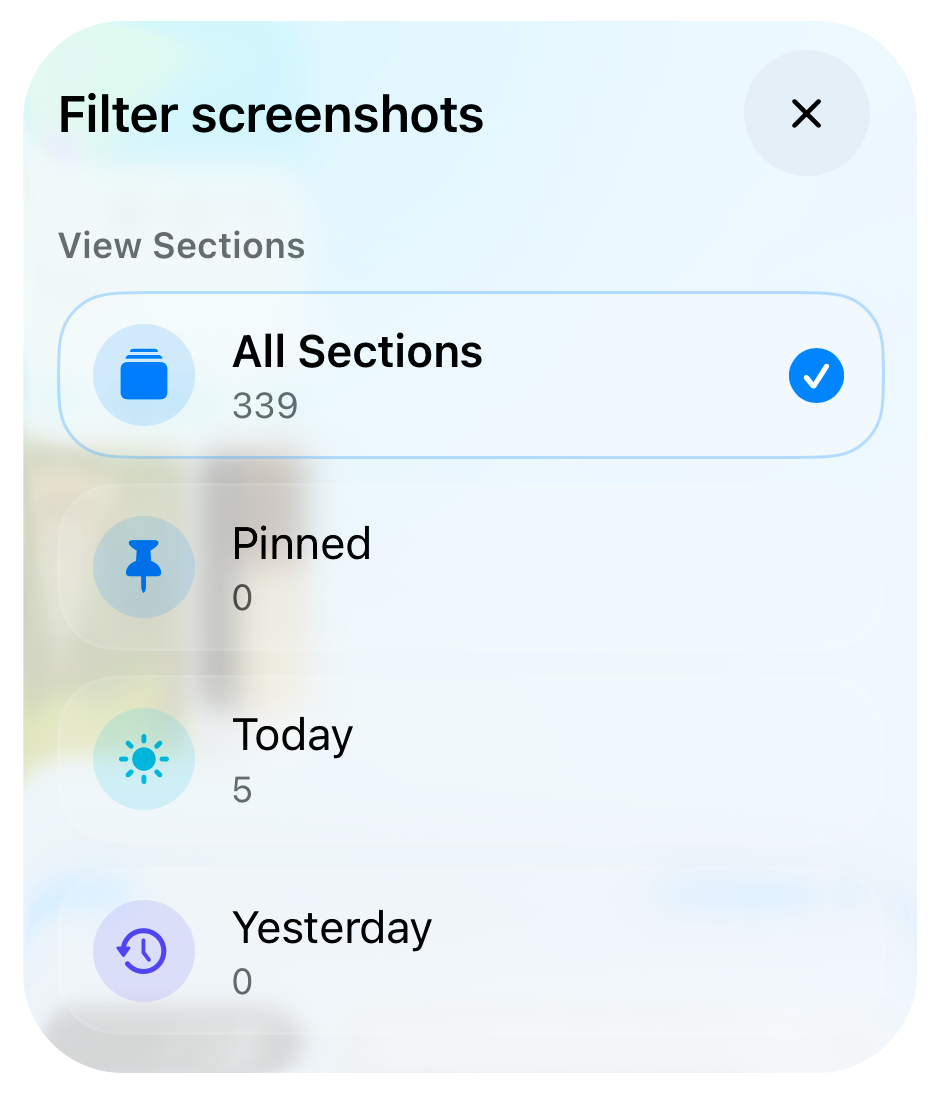
Narrow screenshots by text, visual content, favorites, stars, flags or detected data.
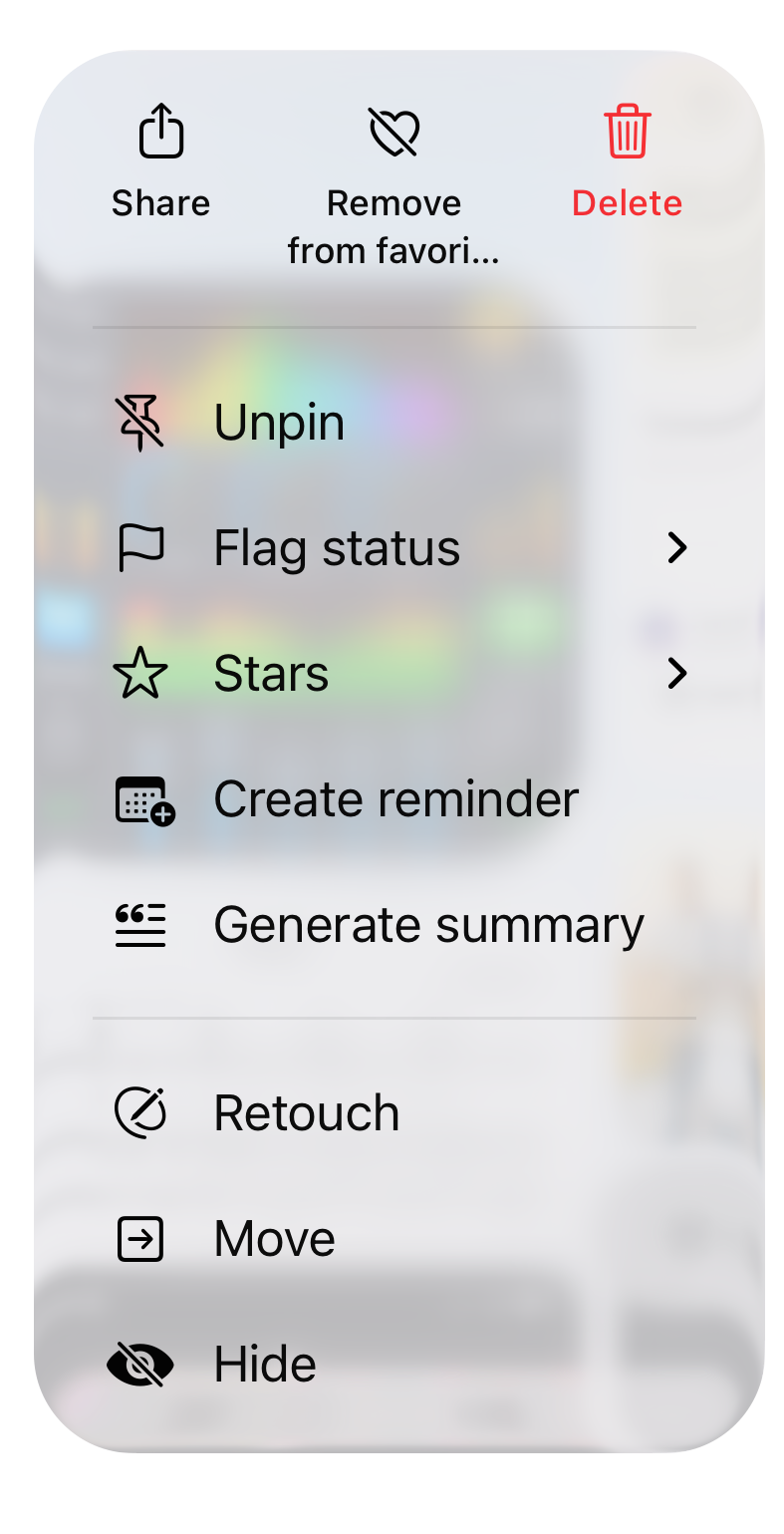
Rename, move, merge, hide or favorite screenshots without leaving your flow.
Continuous analysis
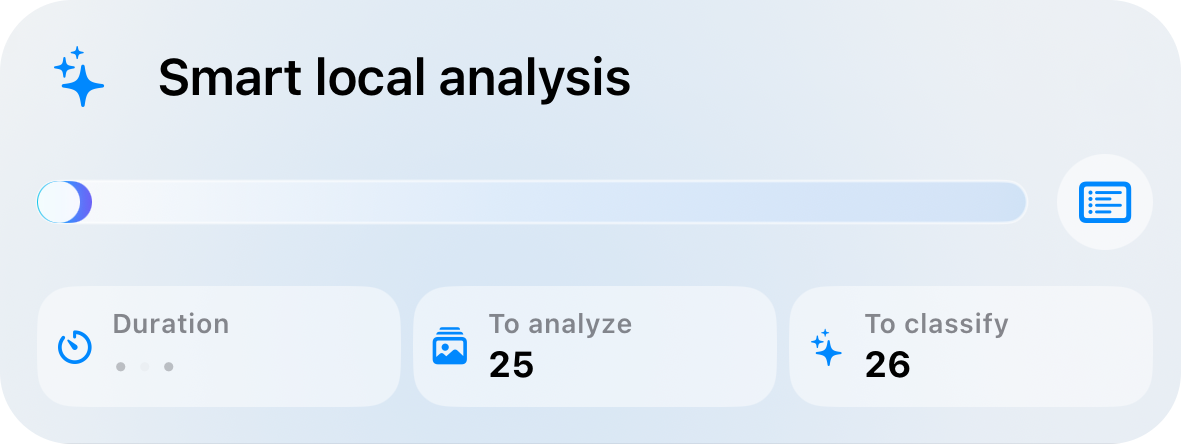
New screenshots are detected, prepared and organized continuously. If the system interrupts processing, CaptainShot keeps the queue and resumes as soon as the device is ready.
Screenshots, added photos and imports enter a persistent queue that resumes when the device is ready.
See what is analyzed, waiting, manually added or already processed.
OCR, visual content, SmartData and sorting run on device, without sending images to CaptainShot.
Complete privacy
CaptainShot does not need to see your screenshots to understand them. No account, no ads and no transfer to CaptainShot servers.
Comparison
Photos stores your images. CaptainShot focuses on what screenshots really need: sorting them, finding them, extracting useful information and turning them into actions, locally.
| Feature | CaptainShot | Other apps | Apple Photos |
|---|---|---|---|
| Private on-device AI, with no upload to a third-party server | ✓ | × | ~ |
| No account, no ads, no profiling | ✓ | × | ✓ |
| Dedicated screenshot app on iPhone, iPad and Mac | ✓ | × | ~ |
| Continuous analysis with a persistent queue | ✓ | ~ | ~ |
| Automatic collections dedicated to screenshots | ✓ | ✓ | × |
| Dynamic custom selections | ✓ | × | × |
| OCR, visual and semantic search | ✓ | ✓ | ~ |
| Synonyms, language variants and highlighted results | ✓ | × | ~ |
| SmartData: dates, amounts, flights, deliveries, QR codes | ✓ | × | × |
| Local summaries, translations and comments | ✓ | × | × |
| Actions and follow-up | |||
| Reminders created from screenshot content | ✓ | × | × |
| Quick review, favorites, stars, statuses and hidden images | ✓ | × | ~ |
| Timeline, statistics, widgets and Spotlight | ✓ | × | ~ |
| Devices and sharing | |||
| Photos albums linked to collections | ✓ | × | ~ |
| iCloud import between devices, without duplicates | ✓ | × | ~ |
| Merge, move and bulk actions across collections | ✓ | × | ~ |
| Collection sharing with importable codes | ✓ | ~ | ~ |
| Editing and control | |||
| Advanced editor: annotations, blur, Apple Pencil, edit history | ✓ | × | ~ |
| Cache, storage and analysis controls | ✓ | × | ~ |
| Interface, collections and content in 9 languages | ✓ | × | ✓ |
Comparison based on general product categories and publicly available information as of June 2026. Features may vary by app, version and region, and change over time. “Partial” means a nearby capability exists, but is limited, not dedicated to screenshots or dependent on system context. Apple, Photos, iPhone, iPad, Mac, iCloud and Spotlight are trademarks of Apple Inc. Other names and trademarks belong to their respective owners. This comparison is for informational purposes only and is not affiliated with or endorsed by Apple.
Natural search
Search OCR text, visual content, comments, summaries and collections. Results are ranked by relevance, and a search can become an always-current custom selection.
Find a word, number, address or sentence directly inside screenshots.
Search for an object, scene, interface or idea even when you do not know the exact text.
Turn a useful search into a custom selection that keeps itself up to date.
Try searches like:
Pool screenshot
restaurant reservation
electricity bill
train itinerary
signed contract
Custom selections
Create a dynamic collection from readable rules: period, text, visual content, SmartData, favorites, stars, flags, faces or comments. New matching screenshots are added automatically.
Describe what you want to find without building filters you cannot read later.
Combine text, visual content, SmartData, dates, favorites, stars, flags, faces or comments.
New matching screenshots appear on their own, without running the search again.
SmartData
CaptainShot extracts useful information from screenshots: dates, durations, phone numbers, emails, addresses, websites, amounts, flights, deliveries, QR codes and references. You can then filter, copy and find the related screenshots.
Dates, amounts, contacts, flights, deliveries, links and references become findable.
Filter by date, amount, address, email, URL, delivery or business reference.
Each data point stays attached to its original image, so you find the information without losing the visual context.
AI reminders, live text and summaries
Use recognized text or send an image from the share sheet: local AI summary, temporary translation, copy, comment, sharing or a reminder linked to the screenshot.
Select, copy or reread recognized text without losing sight of the screenshot.
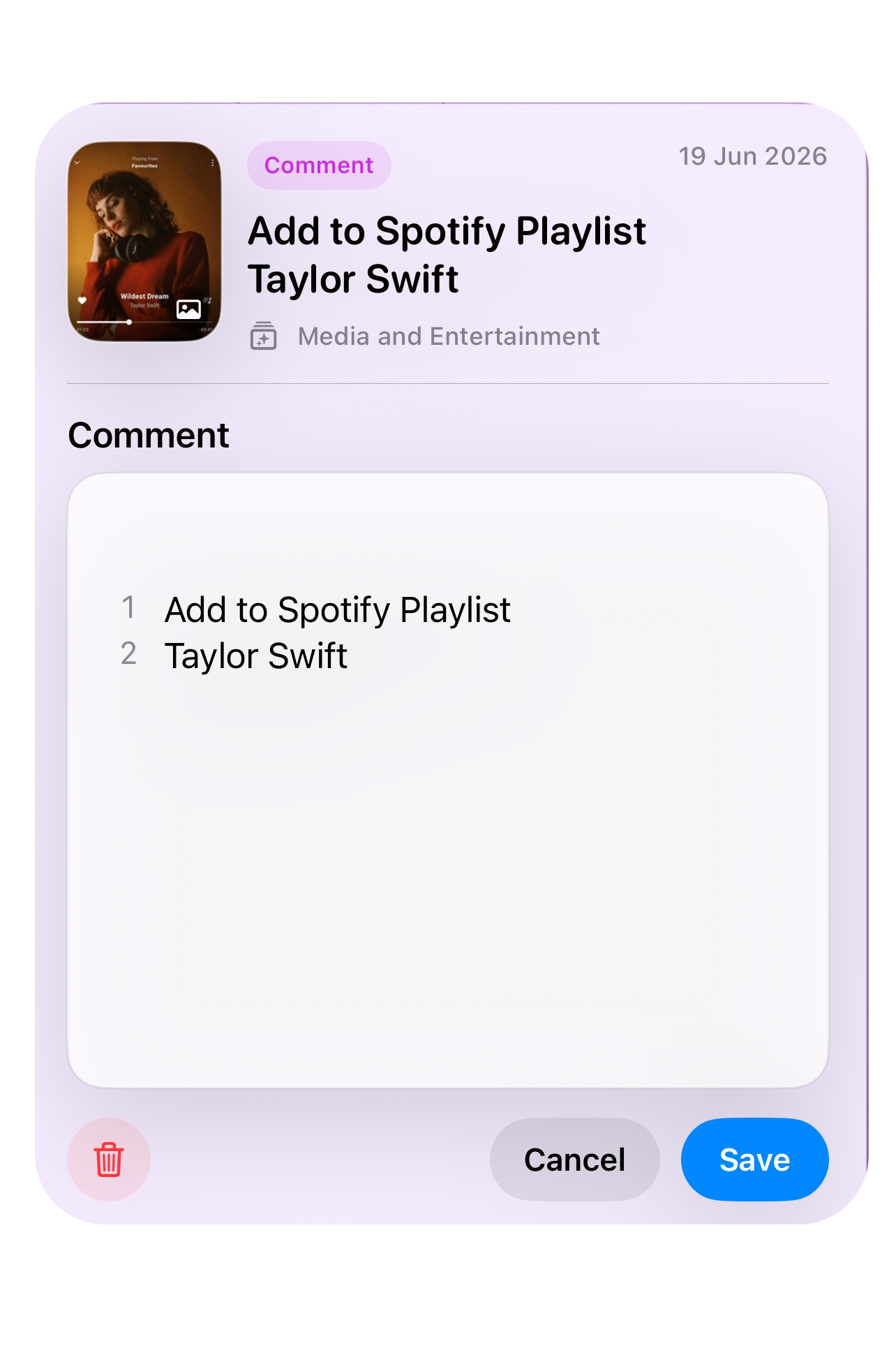
From the screenshot or share sheet, generate a title and key ideas, then copy, translate or share the result.
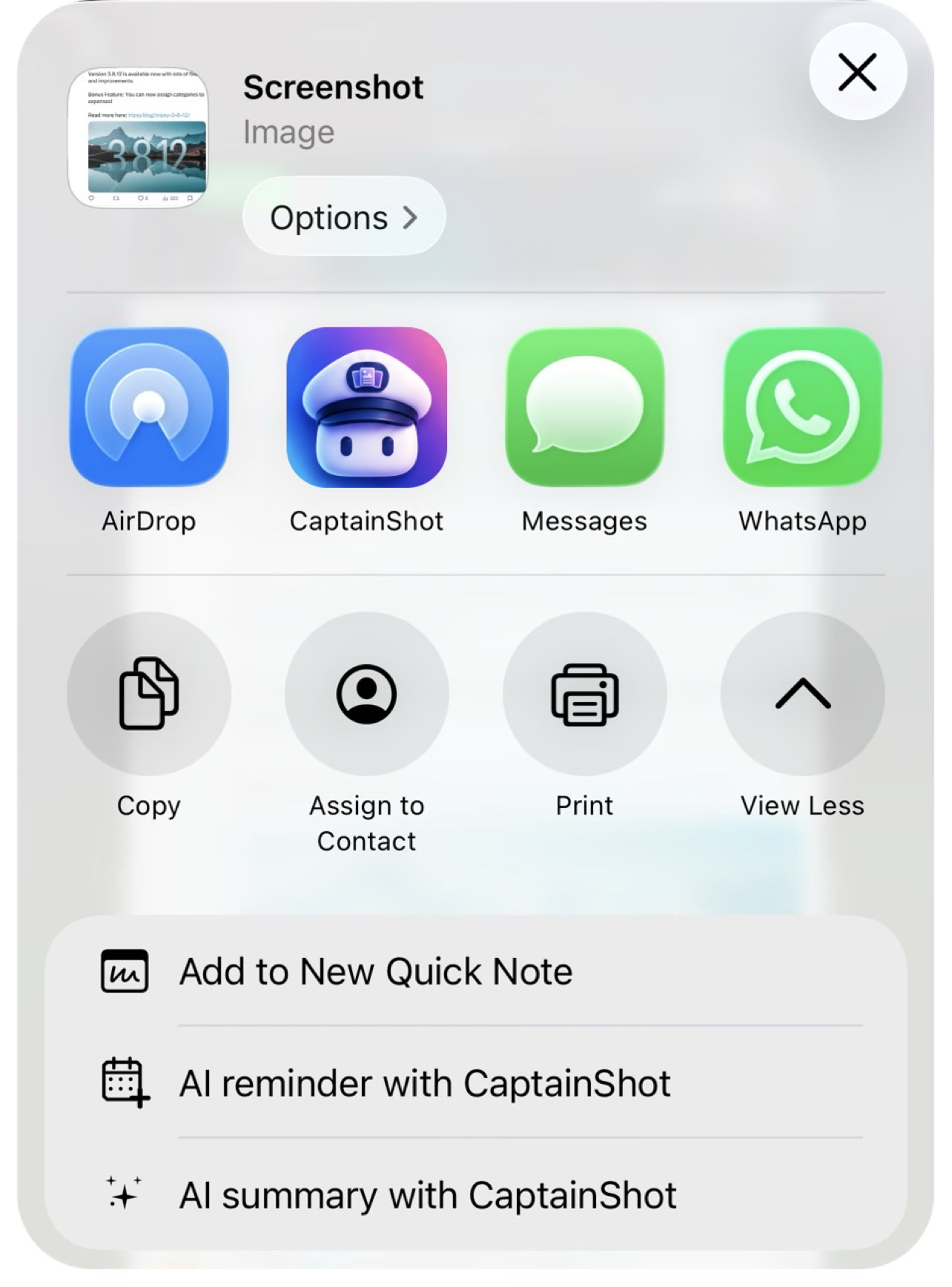
From the text and context, CaptainShot prepares a reminder draft: title, notes, suggested date and target list. You always confirm before saving.
Manual editing
Automation never locks you in: bulk selection, sidebar, hiding, sharing, annotations, blur, text, shapes, crop and rotation stay available whenever you want to take control.
Move between collections, favorites, flags, hidden images, settings and selections without getting lost.
Add text, shapes, arrows, blur areas, crop or rotation without leaving CaptainShot.
Merge collections, create them manually, move, hide or correct several screenshots at once.
Quick Review
Review a series of screenshots without opening each one: keep, delete, mark To review, add to favorites or move to the right collection, with a recap before deletion.
Light and dark mode
Collections, sidebar and working views naturally adapt to your system preference, from light mode to dark mode.
iPhone, iPad and Mac
Browse your images on iPhone, get a wider view on iPad and organize them on Mac. One subscription across all three devices.
Room to organize.
A wider view of your references.
Your screenshots within reach.
Import on Mac
Add images from Finder, then find them in your library to analyze and organize them.
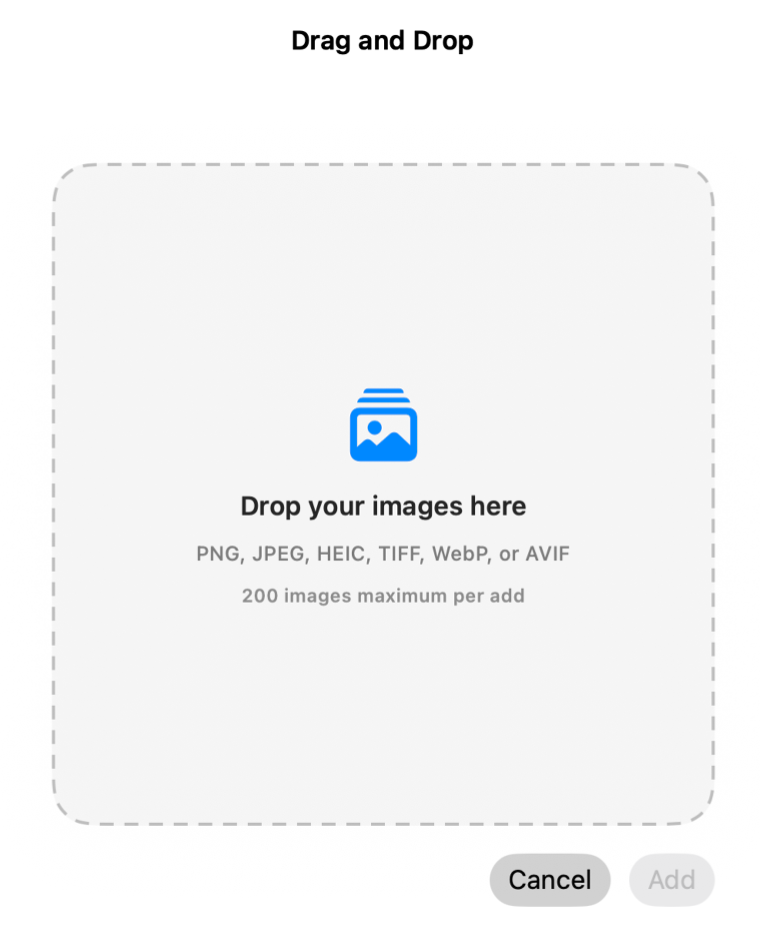
The Mac import window.
Share a collection
The recipient imports a copy using the link or the code and PIN. Collection sharing uses Apple’s CloudKit service.
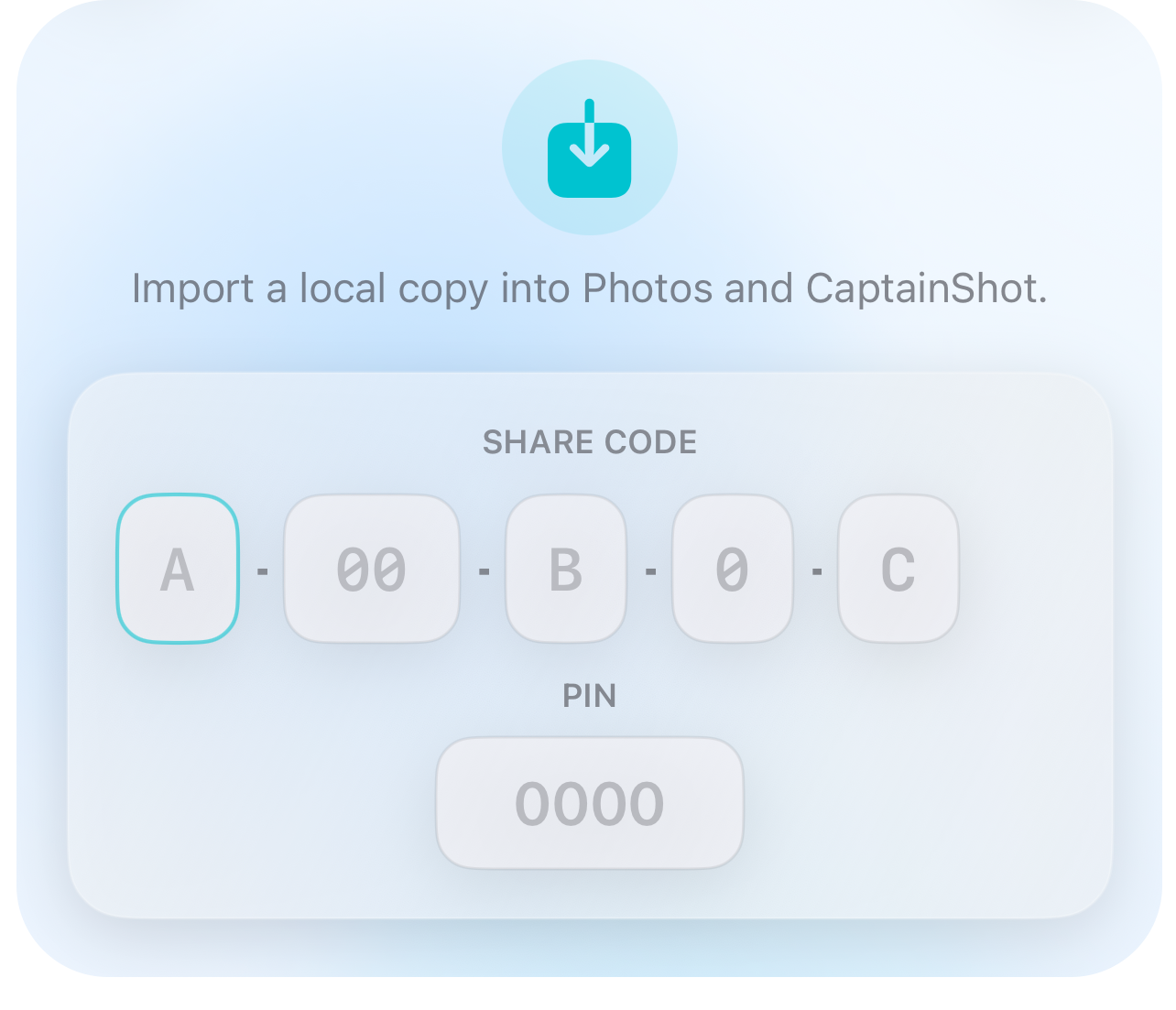
The shared collection import screen.
Settings
Adjust display, languages and analysis options to suit your workflow.
Open collections and counters from your Home Screen or Mac desktop.
Find items indexed by CaptainShot through system search.
Timeline
Timeline groups screenshots by year, month or day, with a scrubber to jump back to the period when the information was captured.
Year, month, day: return to when you captured the information.
Favorites, stars and flags remain available to refine the path.
They use CaptainShot
“Why don’t these features exist natively on Mac? My screenshots had been sitting unused for years.”Sophie L.
“I had 1,200 unused screenshots. Now everything is sorted, searchable and useful. Essential app.”Antoine M.
“Everything is local, so I can organize it all without taking risks. Exactly what my photo library needed.”Julien D.
“Search finds any text in my screenshots. I can retrieve everything in seconds.”Chloé B.
“Review and custom selections help me keep a clean, useful library every day.”Pierre A.
“Intuitive interface, local AI and respected privacy. This completely changes how I use screenshots.”Jeanne T.
FAQ
CaptainShot is available on iPhone, iPad and Mac.
Download on the App Store“I took screenshots so I would not forget. But buried by the thousands in my camera roll, their value disappeared. I built CaptainShot to turn passive storage into a personal memory that stays useful, private and usable every day.”